
PROTECT YOUR STORE
How to Back Up Your TPT Store
Most sellers I talk to have never backed up their store.
Your TPT store holds years of work. Every title you rewrote six times, every description, every cover you made at midnight because the first one wasn’t right. All of it sits on TPT’s platform, which is fine right up until you want a copy of your own.
Their product files are scattered across a laptop, Google Drive, and a folder they’re pretty sure exists somewhere. The listings themselves only exist on TPT. A backup fixes that in one sitting: your listing information in a spreadsheet, your covers in one place, your files organized. Here’s how to do it, what to save, and how to keep it current without adding another chore to your week.
Why Bother Backing Up a Store That Lives on TPT?
Because TPT controls the platform, and platforms change. Fee structures change. Seller programs change. Right now, every TPT seller has a decision to make before December 31, 2026, when the Exclusive and Basic tiers take effect on January 1, 2027. Sellers are weighing payout rates, exclusivity, and whether to sell in other places too. That decision gets a lot easier when you already have a clean record of everything in your store. (If you’re still working through the tier choice itself, my guide on how to sell lesson plans online covers it in depth.)
A backup also protects you in more ordinary ways. If anything ever happened to your account access, your listings would go with it. If you retire a product and later want it back, your own copy is the only version you control. And if you ever list your products somewhere else, having titles, descriptions, and prices in one spreadsheet saves you from rebuilding every listing from scratch, one product page at a time.
You keep records of anything else you own. Your store deserves the same treatment, because it is a business you built one listing at a time.
What a Complete Backup Includes
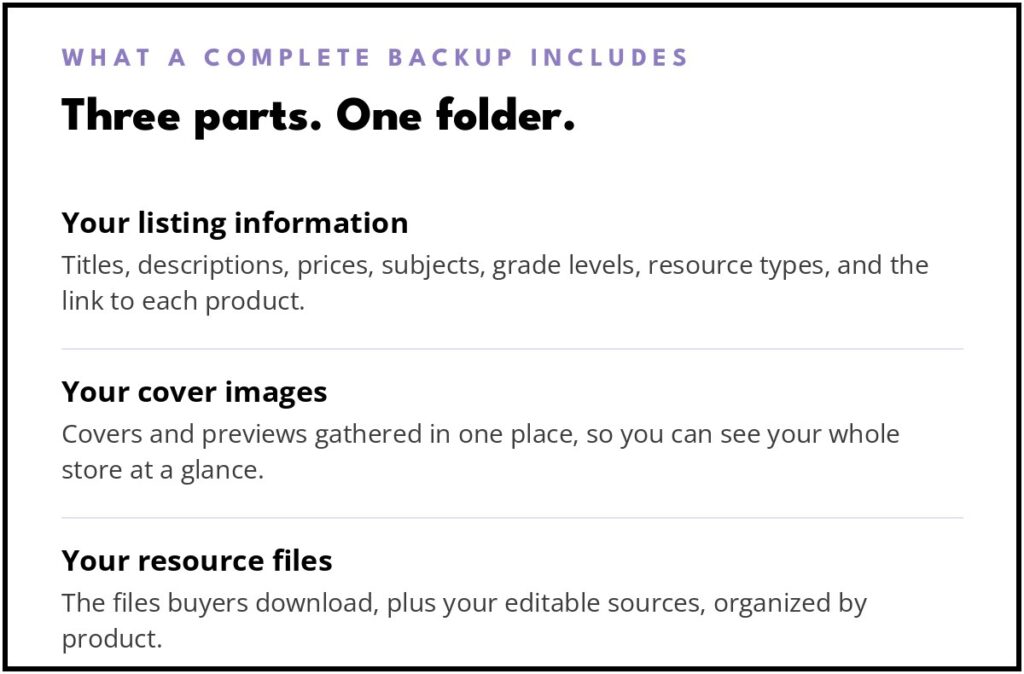
A complete TPT store backup is your own copy of three things: your listing information, your cover images, and your product files, kept in storage you control.
A good store backup has three parts:
- Your listing information. Titles, descriptions, prices, subjects, grade levels, resource types, and the link to each product. This is the part sellers forget, because it lives on the product pages instead of in a file.
- Your cover images. Covers and preview images, gathered in one place so you can see your whole store at a glance. Covers get updated and overwritten over the years, and the version on your hard drive isn’t always the one that’s live.
- Your resource files. The files buyers download, plus your editable source files. These should be organized by product, not dumped in one folder called “TPT stuff final FINAL.”
Date your backup, too. A folder that says when it was made lets you see what changed between one backup and the next.
The Manual Way, and Why Most Sellers Never Finish It
You can do all of this by hand. Open each product page, copy the title and description into a spreadsheet, type in the price and categories, save the cover image, repeat. For a store with ten products, that’s an afternoon. For a store built over several years, it’s the kind of project that sits on a to-do list for months, because there’s always something more urgent than copying and pasting your own listings.
That’s the exact problem I ran into with my own store, and it’s why I built a tool to do the collecting part for me.
How to Back Up Your Store with Store Backup Studio
Store Backup Studio is a free tool I made for TPT sellers. It runs in your browser on a desktop or laptop computer. There’s no account to create with me, and nothing gets uploaded anywhere. Your store information stays on your computer, in files you own.
Here’s the process:
- Sign up for access at Store Backup Studio. You’ll enter your name and email, which also adds you to my email list.
- Add the bookmarklet. The studio gives you a small bookmark to drag into your browser’s bookmarks bar. That’s the whole installation.
- Collect your listings. Go to your own TPT store page while you’re logged into TPT, and click the bookmark. It gathers your listing information and saves it as a file on your computer.
- Open the file in the studio. From there you can download your backup spreadsheet, with your titles, descriptions, prices, subjects, grades, resource types, and product links, along with a visual library of your product covers.
- Go further if you want to. The studio can also match your own image files to your products and help you build an organized archive of your actual resource files. If you run out of time partway through, save your progress and pick it back up later.
When you’re done, you’ll have a spreadsheet you can open any time and a folder of covers you can actually look at, instead of a store that only exists on someone else’s website.
Your First Backup Doubles as a Store Audit
Once the spreadsheet exists, read through it once before you file it away. Most sellers spot things they didn’t know about their own store: a price that never got updated, a description written three cover designs ago, a product they forgot they listed. You’ll also find the gaps. If a product is in the spreadsheet but you can’t locate its file anywhere on your computer, write that down and track the file down while the listing is still live and easy to reference.
That gap list is worth as much as the backup itself. Fixing two or three holes now, on a calm afternoon, beats discovering them the week you actually need your files.
Where to Keep Your Backup
Make one folder for your store backup and put everything in it: the spreadsheet, the visual library, the collected file from the studio, and your organized resource files. Name it with the date so future-you knows which version she’s looking at.
Then keep a second copy somewhere else. Your computer holds one, and a cloud folder or an external drive holds the other. A backup that lives in exactly one place is one spilled coffee away from not being a backup at all.
A backup that lives in exactly one place is one spilled coffee away from not being a backup at all.
How Often Should You Back Up?
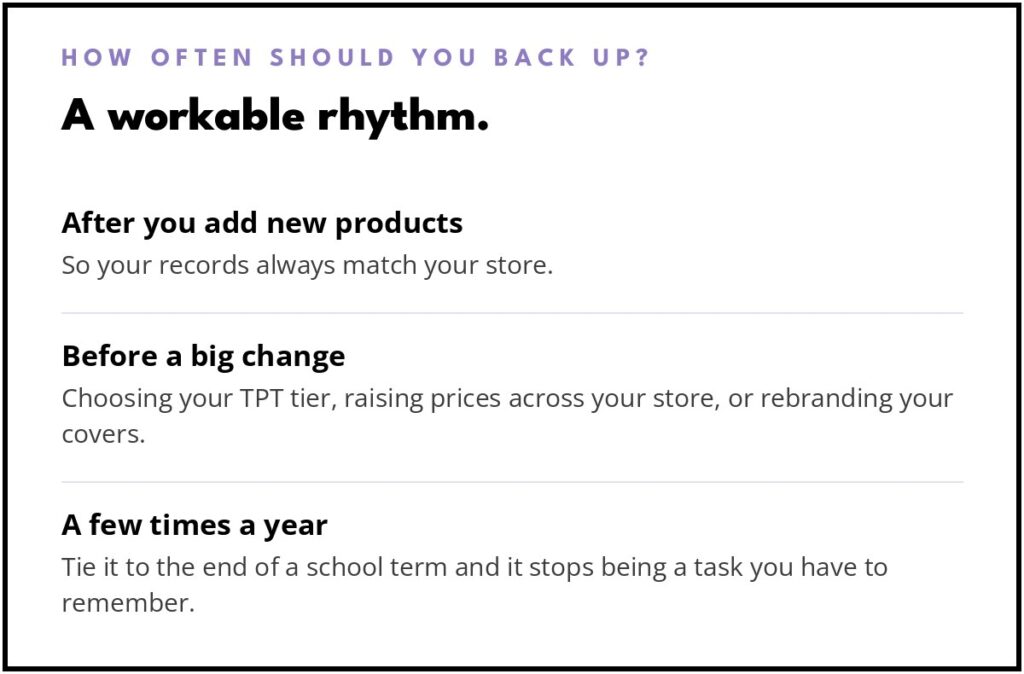
More often than never, less often than you fear. A workable rhythm:
- After you add new products, so your records match your store.
- Before a big change, like choosing your TPT tier, raising prices across your store, or rebranding your covers.
- A few times a year otherwise. Tie it to something you already do, like the end of a school term, and it stops being a task you have to remember.
Each backup takes one sitting, and it gets easier once the folder structure already exists.
Frequently Asked Questions
Doesn’t TPT already keep my listings safe?
Your listings live on TPT’s platform, where they’re hosted and sold. That isn’t the same as a copy on your own computer that you can open, search, and take with you. A backup is the version that’s yours.
Is Store Backup Studio really free?
Yes. It’s a free tool. Signing up for access adds you to my email list, where I send teacher business tips and let you know when I build new things.
Does the tool upload my store information anywhere?
No. It runs in your browser, and the files it creates are saved to your own computer. I never see your store data.
Does it back up my actual product files too?
The main backup covers your listing information and your cover images. There’s also an optional archive step that works with the resource files already on your computer and organizes them by product, so your files and your listings end up matched together.
Do I need a desktop computer?
Yes, use a desktop or laptop. The bookmarklet and the file downloads are built for a computer browser, not a phone or tablet.
Start With the Copy That’s Yours
You built your store one late night at a time. Keeping your own copy of it is a small habit, and it’s the step that makes every other decision about your store simpler, whether you stay put, change tiers, or sell in new places later.
You can grab Store Backup Studio for free here: Store Backup Studio. And if you want the weekly version of this kind of practical teacher-business help, join my email list: join my email list.