
CLASSROOM GAMES
Self-Checking PowerPoint Games for the Classroom
If your school runs on Microsoft instead of Google, you already know the pattern.
Someone shares a great classroom game resource, you click the link, and it needs Google Sheets, Google Slides, or a Google account your students don’t have. A self-checking PowerPoint game template skips that wall entirely. It runs in the PowerPoint you already have, students play by clicking, and the game tells them on the spot whether they got it right.
There’s no printing, no cutting, and no stack of papers waiting for you after school. You put the game on the screen, your class leans in, and review day starts to feel less like a chore.
One thing these games are not: browser games. They run in desktop PowerPoint on a Mac or a PC, which is exactly what makes them a fit for Microsoft schools. Here’s how they work, which formats exist, and what you need to run one.
A self-checking PowerPoint game template is a pre-built, editable game file that opens in desktop Microsoft PowerPoint.
What Is a Self-Checking PowerPoint Game Template?
A self-checking PowerPoint game template is a pre-built, editable game file that opens in desktop Microsoft PowerPoint. You type your own questions onto the question slides once, start the slideshow, and students play by clicking. The game checks each answer as they go, with instant visual feedback: a card turns green or red, a “Check Answer” button reveals the result, a piece drops onto the board. The templates are $19 each, and currently on sale for $12.
The self-checking part matters because students never have to wait for you to confirm an answer. They know right away, so the game keeps moving and you are free to watch, help, and actually teach.
If your school is a Google school instead, stop here and grab the same games built for spreadsheets: the self-checking Google Sheets game templates cover the same formats for Chromebook classrooms. These PowerPoint versions exist for everyone else.
Why Teachers Are Obsessed With Them
Instant feedback, zero grading. Students see immediately whether they are right. You collect nothing and grade nothing, because the checking happens inside the game.
Every student participates. Projected review games usually mean three kids answering while everyone else checks out. These templates can run whole-class from your computer, in small groups, or one student at a time, and every format is built around answering constantly, not watching.
Zero prep after setup. Type your questions onto the slides once. The boards, scoreboards, and moving parts are already built. For the next unit, swap in new questions and play again.
No printing, no cutting, no laminating. The whole game lives in one file on your computer. Nothing to prep at the copier, nothing to store in a bin.
No student accounts, no logins, no browser. The game runs inside desktop PowerPoint on the classroom computer. Nobody signs up for anything, nobody needs a Google account, and your school’s filter cannot block a file that is already on your hard drive.
How Self-Checking PowerPoint Games Actually Work
There are no formulas here and nothing for students to type. The whole game runs on clicks.
Each template is built around a main game board and a set of question slides. Students click a card or square on the board, and a hyperlink jumps them to that question slide. They pick an answer, and the game responds right there: the answer turns green if it is correct and red if it is not, or a “Check Answer” button shows them the result. One more click brings them back to the board, where the game has moved: a piece has dropped, a covered square has lifted, a score has updated.
The movement, scoreboards, and spins are powered by macros, which is why the files need desktop PowerPoint (more on that below). You edit the questions directly on the question slides in regular editing view. There is no separate teacher tab or control panel hiding anywhere. What you see on the slide is what your students get.
That is also the honest trade-off. Because macros do the heavy lifting, these games will not run in PowerPoint Online, Google Slides, or a browser, and they will not run on a Chromebook. They need the real, installed PowerPoint on a Mac or a PC. For a Microsoft school, that is usually the computer already sitting on your desk.
You collect nothing and grade nothing, because the checking happens inside the game.
Game Formats Available as PowerPoint Game Templates for the Classroom
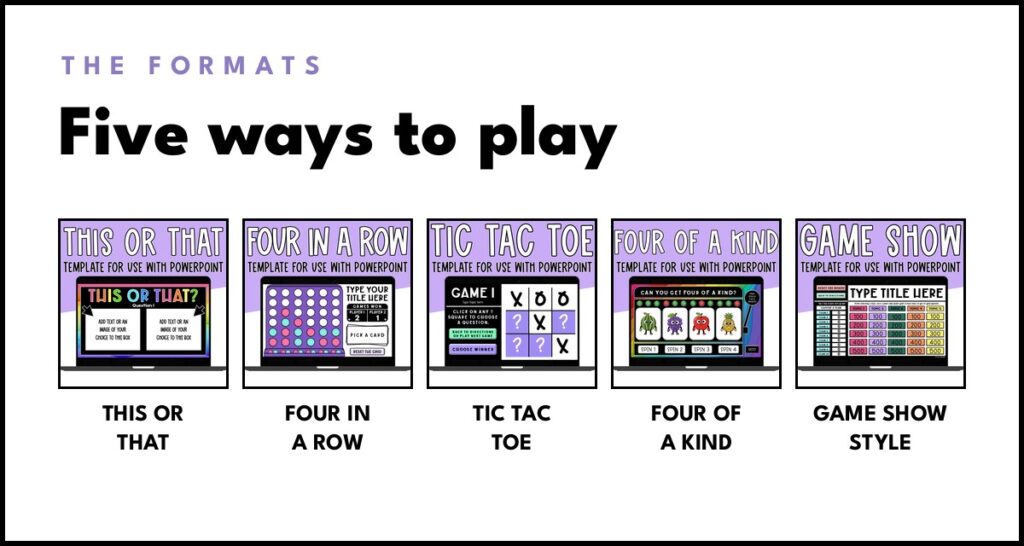
Classic classroom games, rebuilt as editable PowerPoint templates. Type in your questions and each one plays like it was made for your unit:
This or That

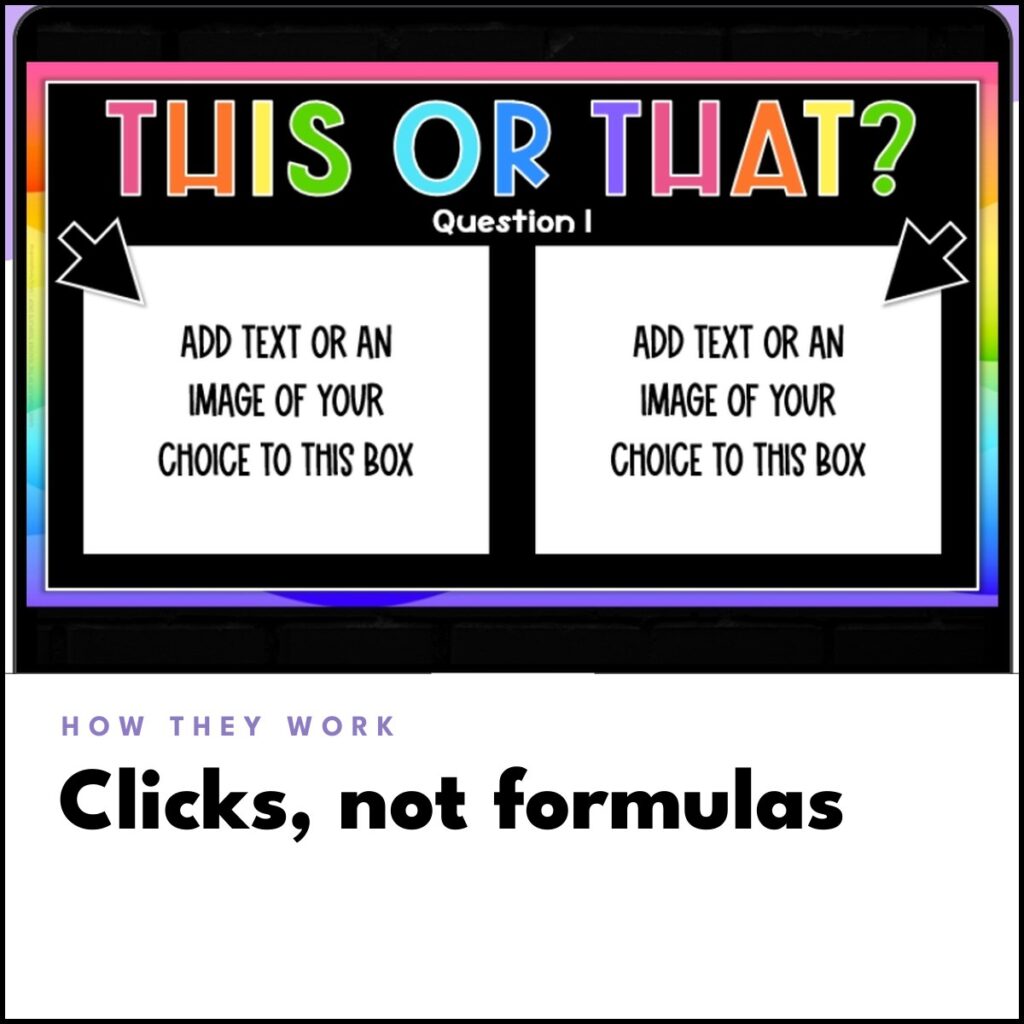
Students start on a choice slide with two options side by side, then click the arrow for their pick to jump to a question slide. They answer, click “Check Answer” to see if they got it right, then click “Next Question” to move on. Perfect for vocabulary (synonym or antonym?), math (greater than or less than?), or science (solid or liquid?). Fast rounds, high energy, works for literally any subject.
Four in a Row
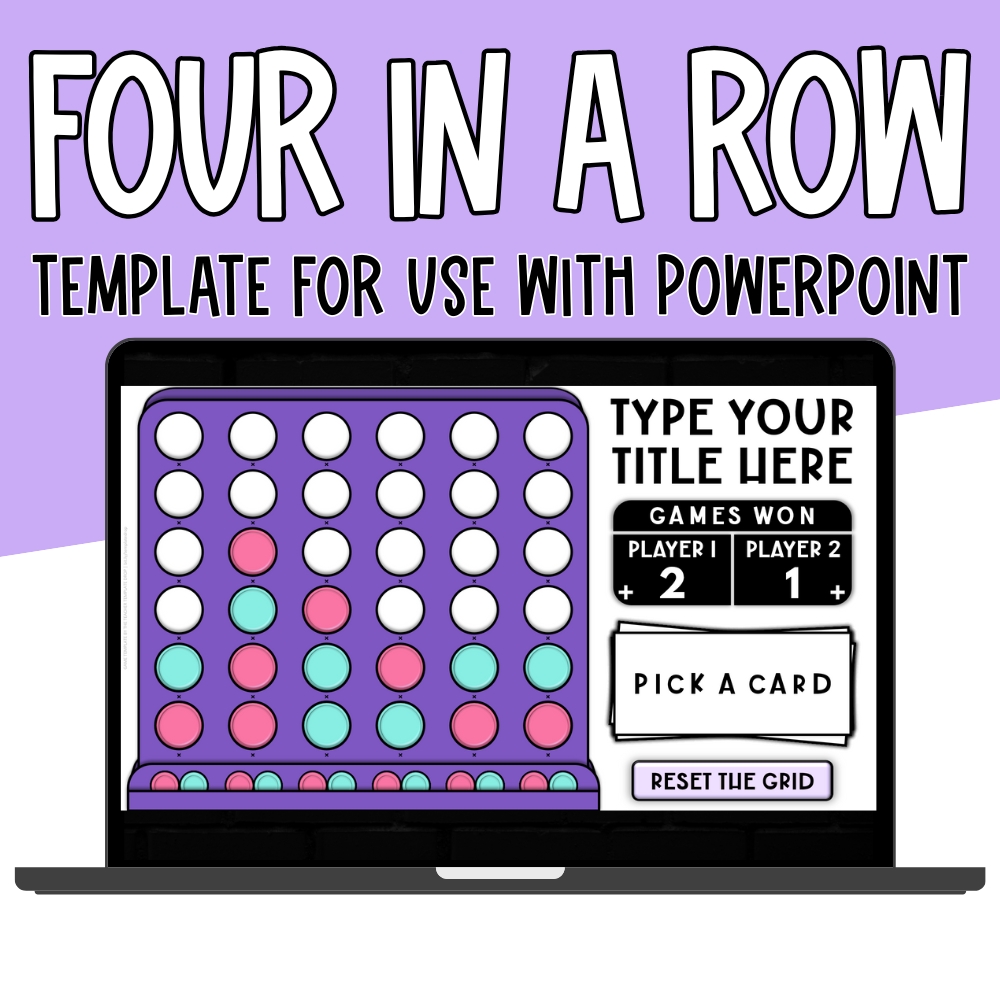
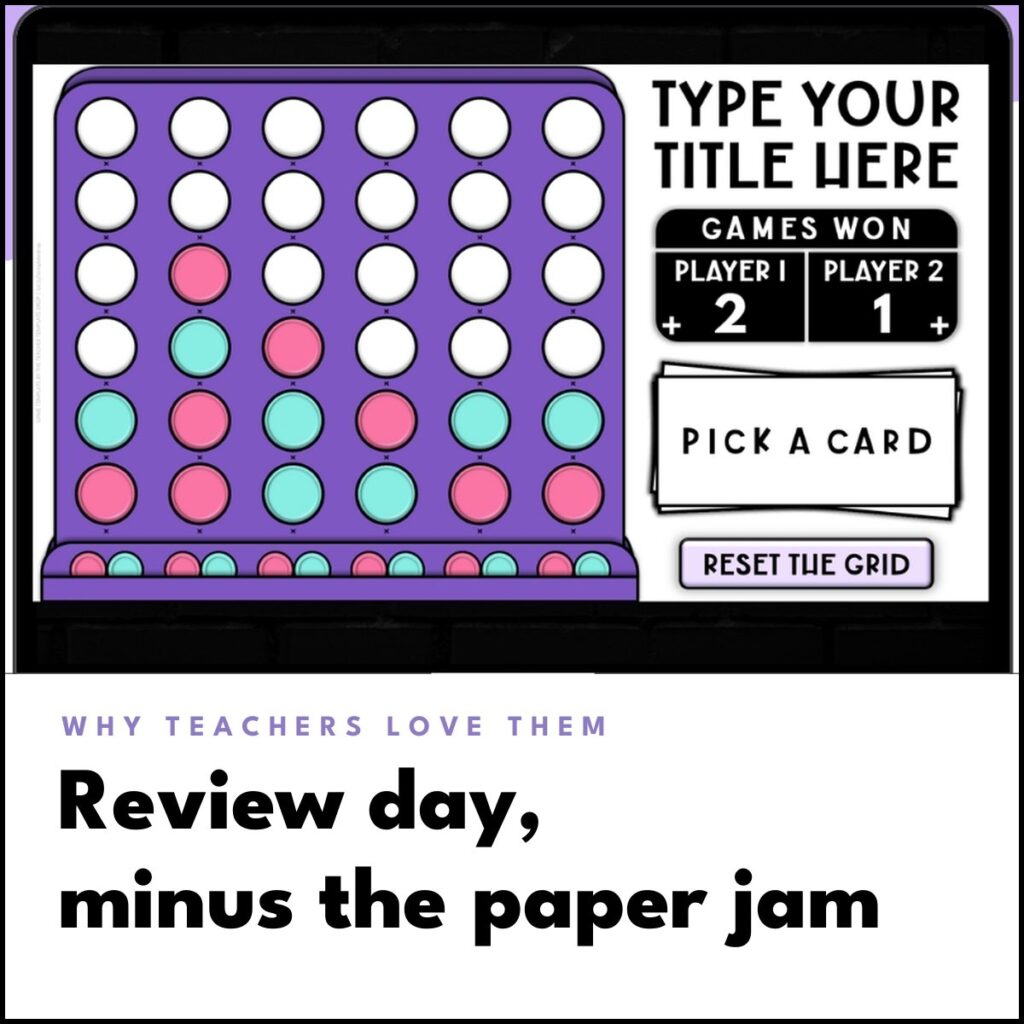
The Connect Four strategy game, classroom edition. Students click a question card on the board, answer on its slide, and find out instantly: correct turns green, incorrect turns red. Back on the board, they click the piece at the bottom of a column and it drops into the lowest open spot. A built-in scoreboard and reset button make rematches easy, which matters, because kids will play “just one more round” until the bell rings.
Tic Tac Toe

The timeless classic, upgraded. Every square on the board hides behind a question card. Click one, answer the question, come back, and the card lifts to reveal the X or O underneath. When someone wins, the “Choose Winner” button shows the possible winning lines, and the winner clicks the matching arrow to draw the line across the board. One file holds three full rounds, and it is simple enough for your youngest learners, strategic enough that older kids don’t roll their eyes.
Four of a Kind

A card-style format built for the classroom: collect four matching pictures by answering questions correctly. Students pick a SPIN button (there are four, each hiding a set of three questions), answer, then click “SHOW MY SPIN” to reveal one random picture on the board. After all four sets, the FINAL SPIN checks every answer, lights them up green or red, and spins the last pictures. Get four matching images, with every answer correct, and you win. You build the image bank yourself, so the pictures can be seasonal, themed, or even photos of your own students. If you want to feel how it plays before anything else, there is a free play-only sample of this one on the product page.
Game Show Style

The game show one. Pick your teams (anywhere from 2 to 10), click “Let’s Play,” and teams choose tiles from five topics on the board. Scores update automatically on the built-in scoreboard, and used tiles disappear, so the board always shows what is left. This is the format for a full-class, everyone-on-the-edge-of-their-seat review day run from your computer at the front of the room.
Want the full walkthrough? Read the Game Show Style guide.
Each format plays differently, so you can rotate through them across units without review day ever feeling stale.
What You Need to Run a PowerPoint Game Template in Your Classroom
The checklist looks different from a Google resource, so read it before you buy anything:
- A Mac or a Windows PC with a copy of the game file on it.
- Desktop Microsoft PowerPoint, installed. Windows needs PowerPoint 2016 or newer. On a Mac, you need Microsoft 365 for Mac version 16.80 or later, or Office 2021 for Mac updated to version 16.80 or later. The games are macro-enabled files, and the macros are what make the pieces move and the scoreboards work.
- A way to show the game. A projector or smartboard runs a whole-class game from your computer. For small-group or individual play, students need a computer with desktop PowerPoint installed too.
- That’s it. No student accounts, no internet connection, no browser, nothing to install beyond PowerPoint itself.
What will not work, stated plainly: Chromebooks, PowerPoint Online, Google Slides, Keynote, and the PowerPoint apps for iPad, iPhone, and Android. The macros these games depend on do not run in any of them. If your classroom is 1:1 Chromebooks, you want the Google Sheets versions of these games instead, and this guide’s formats all exist there too.
5 Ways to Use Them (Beyond Review Day)
- Test review days. The obvious one, and still the best one. Load in your study guide questions and run it whole-class from your computer. The scoreboard does the crowd control.
- Centers and stations. Put a game on the station computer (it needs desktop PowerPoint) while you pull small groups. Students click through it without needing you, or a login, at that station.
- Early finisher activity. Keep a ready file of vocabulary or math fact questions on your classroom computer. Fast finishers can start a round in seconds, on the machine they already use.
- Sub plans. Leave the file on your desktop and one line of directions: open it, press play, let them play. Your sub needs your classroom computer, not a link and a login, and your students will actually do the work.
- Whole-class play over Zoom. Screen-share the slideshow and play together as a class, with students calling out answers. The game lives on your computer, so a remote day does not need every kid to have PowerPoint at home.
Frequently Asked Questions
Will this work on Chromebooks?
No. The templates are macro-enabled files that need desktop Microsoft PowerPoint, and Chromebooks cannot run it. If your students are on Chromebooks, use the Google Sheets versions of the same games instead. They were built for exactly that setup.
Does it work with Google Slides or PowerPoint Online?
No. The games do not run in Google Slides, PowerPoint for the web, or the mobile PowerPoint apps. The macros that power the movement and scoring only work in the installed desktop program on a Mac or a PC.
What do I need to use a PowerPoint game template?
A computer with desktop Microsoft PowerPoint installed. Windows users need PowerPoint 2016 or newer; Mac users need Microsoft 365 (version 16.80 or later) or Office 2021 updated to version 16.80 or later.
Can I add my own questions?
Yes. That’s the whole point. You type your questions and answers directly onto the question slides, and you can edit player names, colors, and (in Four of a Kind) the pictures in the image bank. Swap in new questions for every unit and the same template keeps working all year.
Do students play individually or as a whole class?
Either. Whole-class play from your computer and a projector is the most common setup, and Game Show Style is built for it with up to 10 teams. This or That, Four in a Row, and Tic Tac Toe also work in small groups or one student at a time, as long as that computer has desktop PowerPoint.
Can I use the same template for multiple subjects?
Yes. The game mechanics stay the same; only your questions change. Use the same Four in a Row template for fractions on Monday and vocabulary on Friday. That’s what makes it a template and not a one-time activity.
Is there a way to try one first?
Yes. The Four of a Kind product page offers a free play-only sample file, so you can open it in your PowerPoint, click through a full game, and confirm it runs on your machine before you buy anything.
Why won’t my PowerPoint game open or run?
The templates are macro-enabled PowerPoint files, and the macros that power the movement and scoring only run in desktop Microsoft PowerPoint. They do not run in Google Slides, PowerPoint for the web, the mobile PowerPoint apps, or on Chromebooks.
How much do the PowerPoint game templates cost?
They are $19 each, and currently on sale for $12. You get the game file already built, so you add your own questions and answers and it is ready to play.
Ready to Play? Grab Your Templates
If your classroom runs on PowerPoint, your review games finally can too. Head to my Digital Templates shop and grab the PowerPoint collection: my This or That template, my Four in a Row template, my Tic Tac Toe template, my Four of a Kind template, and my Game Show Style template. Every one is editable, self-checking, and waiting for your questions.
Your students get a game, and your projector finally gets a workout that isn’t a slide deck of questions you read out loud.